
Portal Updates and Tips for All Users
If you are limited to one device, do not create more than one account on that device, it will cause the accounts to merge. Instead, please send the name, school and email to aly@kyymca.org and she will create supplemental accounts.
If the account should be connected to a parent or student account, please share the name and email for the person to which the account should be connected.
Step 1 - Click on this link
Step 2 - Type in your email and click submit.
Step 3 - One of three things will happen:
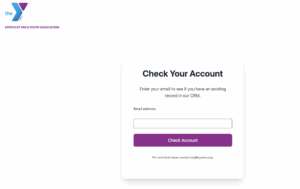
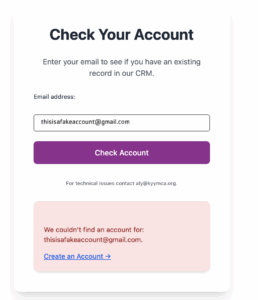
If the email is not in our system you will see IMAGE #1
You have three options:
- Try another email.
- If you know you should be in the system, but can't remember your email, contact aly@kyymca.org for help finding your account. DO NOT CREATE A SECOND ACCOUNT.
- Click “CREATE AN ACCOUNT” then fill out the next form. Note that if you have participated in the past, and you choose this option your new account will not show your past participation.
Image #1 -
If you typed in the correct email and the system found your data in our system, but you haven’t set up a login to for the new KY YMCA portal you will see image #2.
If you get this message, just click “Request Portal Access”
Fill out the form.
You will receive a confirmation email that will then allow you to create your private password.
Image #2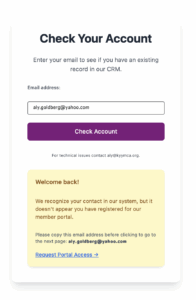
If you typed in the correct email, the system found your data and you already set up a login for the new KY YMCA portal you will see image #3.
If you get this message, click “Please sign in here” and log in!
Image #3 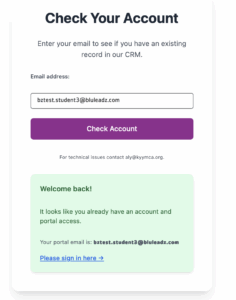
If your account is not yet connected to your child(ren)'s
-
- Log into the portal
- Go to the blue box with the words: "Request to Connect with Your Child's Account"
- Click the button at the top right of the box to go to the form
- Your request will be reviewed by a staff member and the connection made within a few business days.
- If your account is already connected to your child(ren)'s
-
- Log into the portal
- Go to the left navigation menu
- Select any program
- Scroll down to the chart with your child’s name
- There you will find links to the correct forms
-
If your account is not yet connected to your child(ren)'s
- Log into the portal
- Go to the blue box with the words: "Request to Connect with Your Child's Account"
- Click the button at the top right of the box to go to the form
- Your request will be reviewed by a staff member and the connection made within a few business days.
If your account is already connected to your child(ren)'s
- Log into the portal
- On the portal home page, there will be a navigation menu near the top. Select My Children
- On this page, you will see all of your connected children and their NBS (need based scholarship) discount percentage.
Portal Updates and Tips for Advisors
- Step 1 - Click on “KYA” then Click on “Manage Schools”
- Step 2 - Click on “Manage Roster”
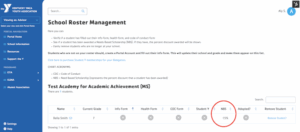
- Step 3 - On the next page scroll to the student you want to view. If they have been approved for a Need Based Scholarship, the percent discount will appear in the appropriate column.
Student Y Group Membership Management for Advisors
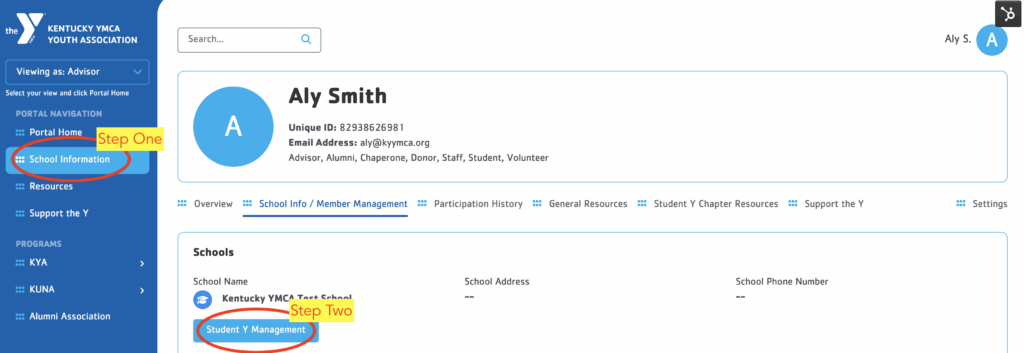
- Step 1 - Click on “School Information”
- Step 2 - Click on “Student Y memberships”
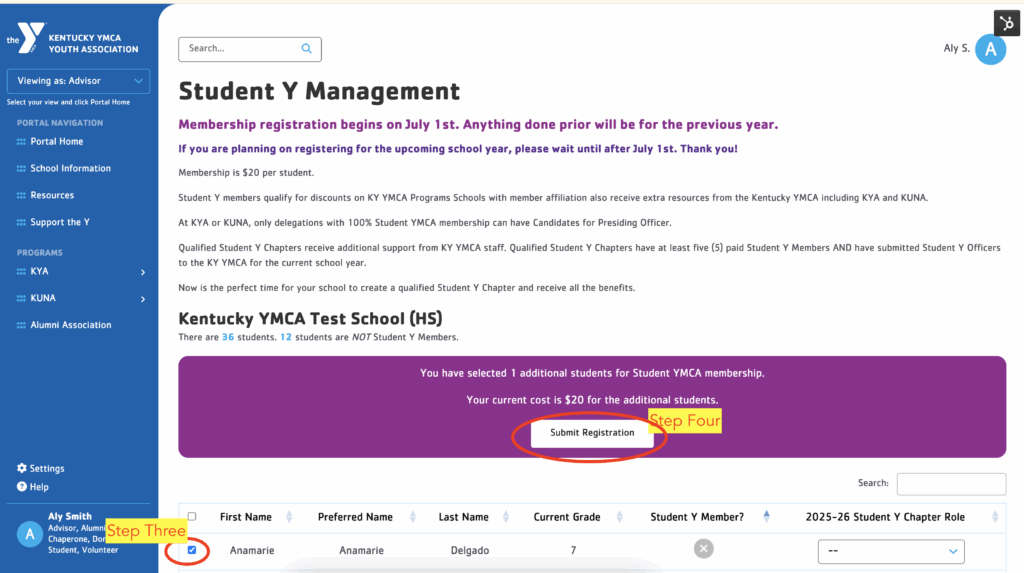
- Step 3 - Select the boxes by each student who you want to have a membership
- Step 4 - confirm that numbers are accurate and click submit
- Step 1 - Click on KYA, then select Manage Schools
- Step 2 - Select Manage Roster
- Step 3 - Click Remove Student for any student no longer at your school
*Note: New students will need to create an account. They will appear once they say they are going to your school.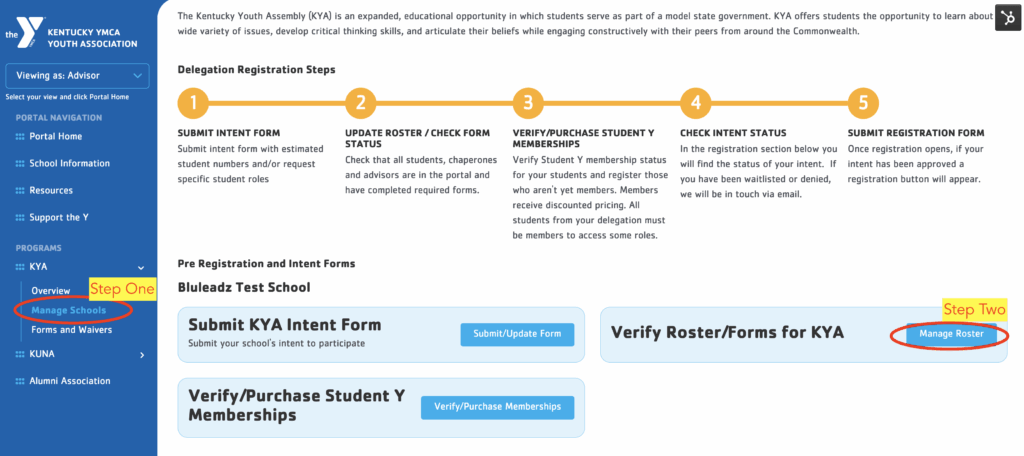
From the portal, make sure you are viewing as an advisor